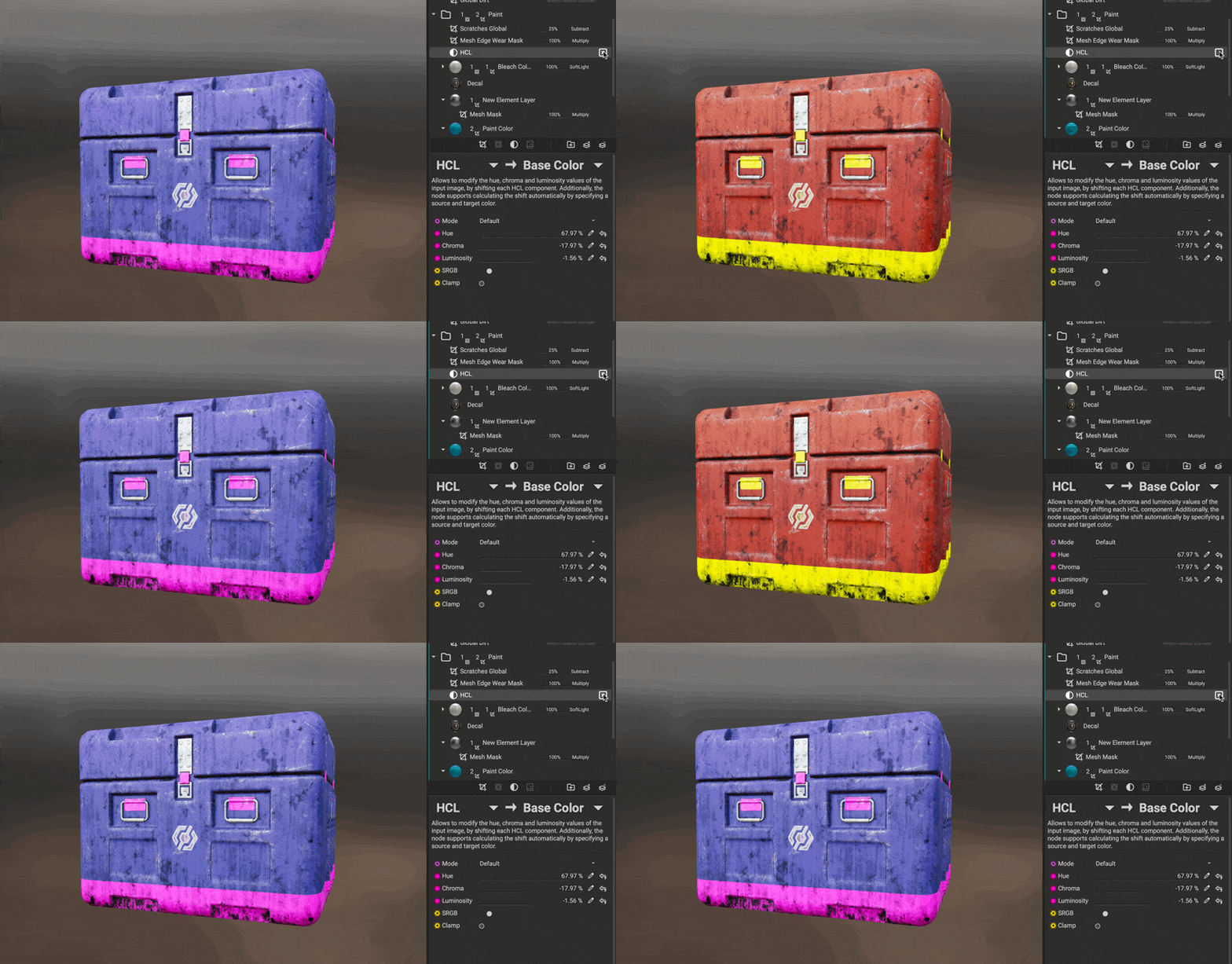
Filters can be used to adjust a layer's individual channel information when creating materials using Material Layering or when applying textures to assets in Asset Texturing projects. Filters are non-destructive, meaning they make their adjustments procedurally and can be adjusted or removed at any time.
Filters can be applied to individual layers or entire layer groups. In this example, an HCL filter is used to adjust the color of the entire paint group for this sci-fi crate.
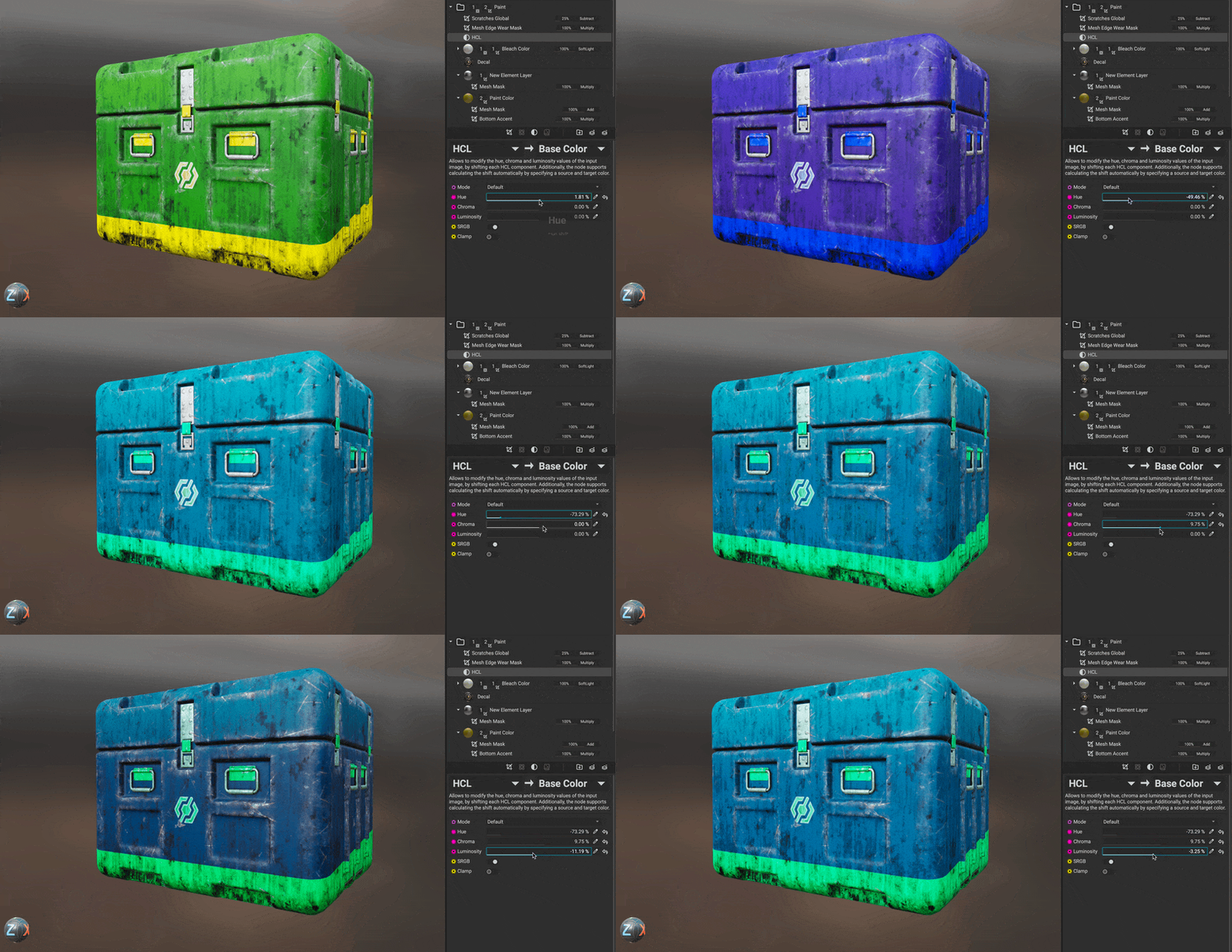
¶ Adding a Filter to a Layer
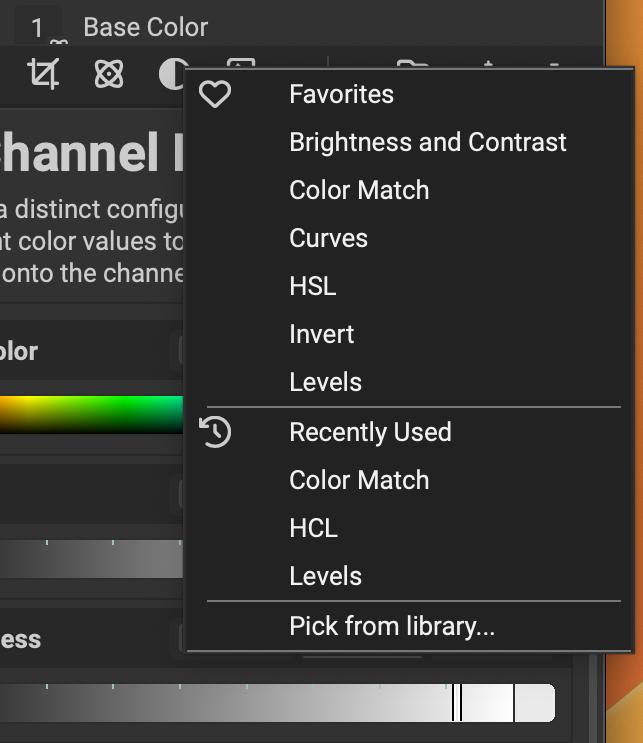 To add a filter to a layer or layer group, select the layer and click the
 Add Filter button located at the bottom of the Layer Stack or in the main toolbar. A contextual menu will appear, allowing you to select a filter from one of your favorites, choose from a recently used filter, or pick one from the MAT Library using the Resource Picker panel.
Filters can be added to Multi-Channel Layers, Element Layers, Multi-Channel Brush Layers, Element Brush Layers, and Layer Groups. Multiple filters can be added to the same layer. The order in which filters are assigned to a layer is significant; they will execute from bottom to top. To change the order, simply drag and drop a filter above or below another.
To remove a filter from a layer, select it in the Layer Stack and press Delete. Alternatively, you can right click the filter and choose Delete from the contextual menu.
¶ Adjusting a Filter's Properties
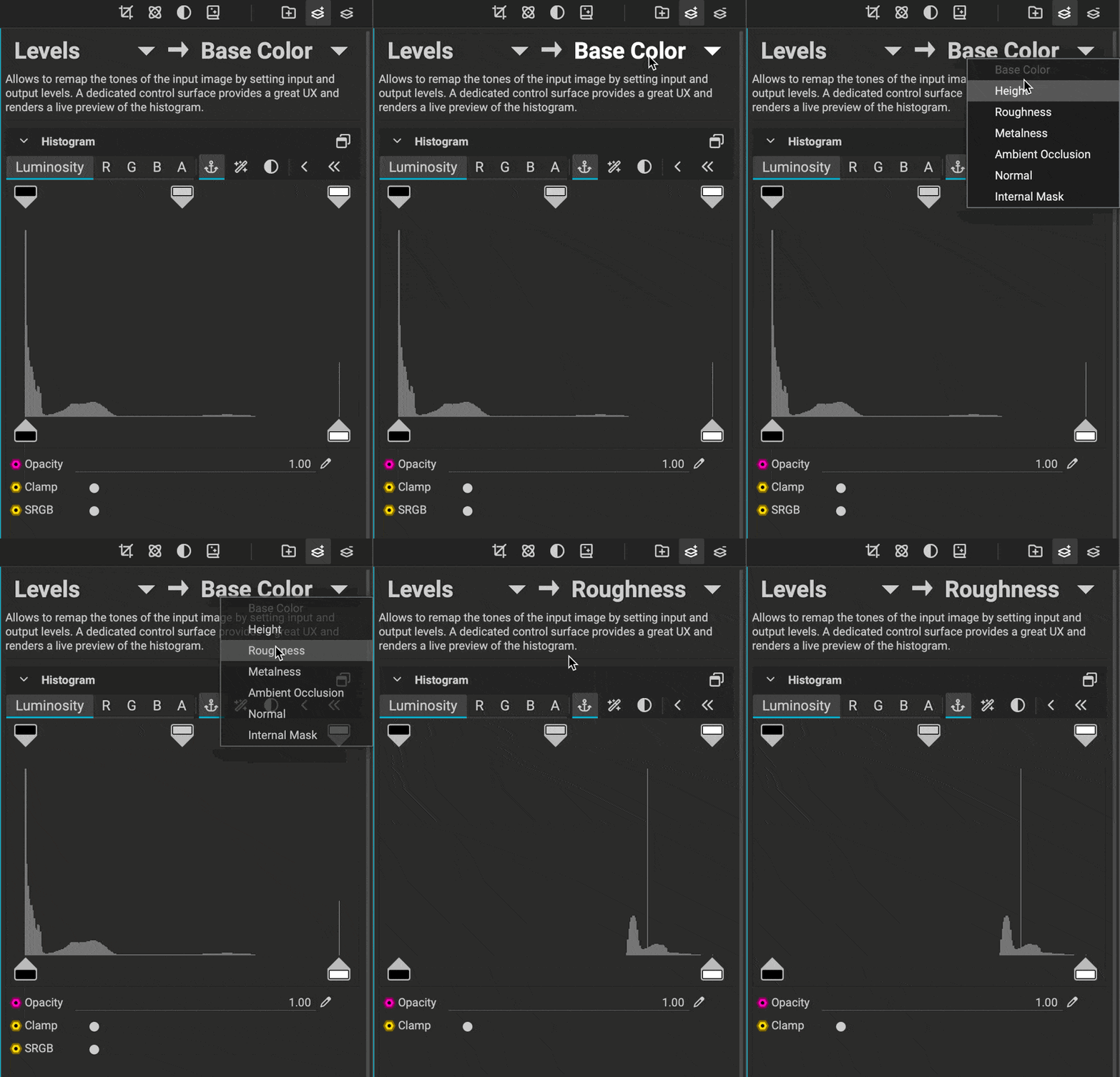 Filters contain dynamic parameters and widgets that make it easy to adjust their settings. To adjust a filter's settings, click on it in the
 Layer Stack. The filter's properties will appear below.
Filters apply to a single channel on a layer or layer group. To select the channel affected by the filter, choose it from the dropdown menu in the top right of the filter's properties.
¶ Disabling Filters
Filters can be disabled to quickly A/B test their effects. To disable a filter, click the button to the right of the filter in the Layer Stack. Clicking again will reenable the filter.