Masking a decal by its alpha channel ensures adjustments (for example, roughness changes) apply only to the visible portion of the decal, not the transparent background.

¶ Create the Decal and Reference
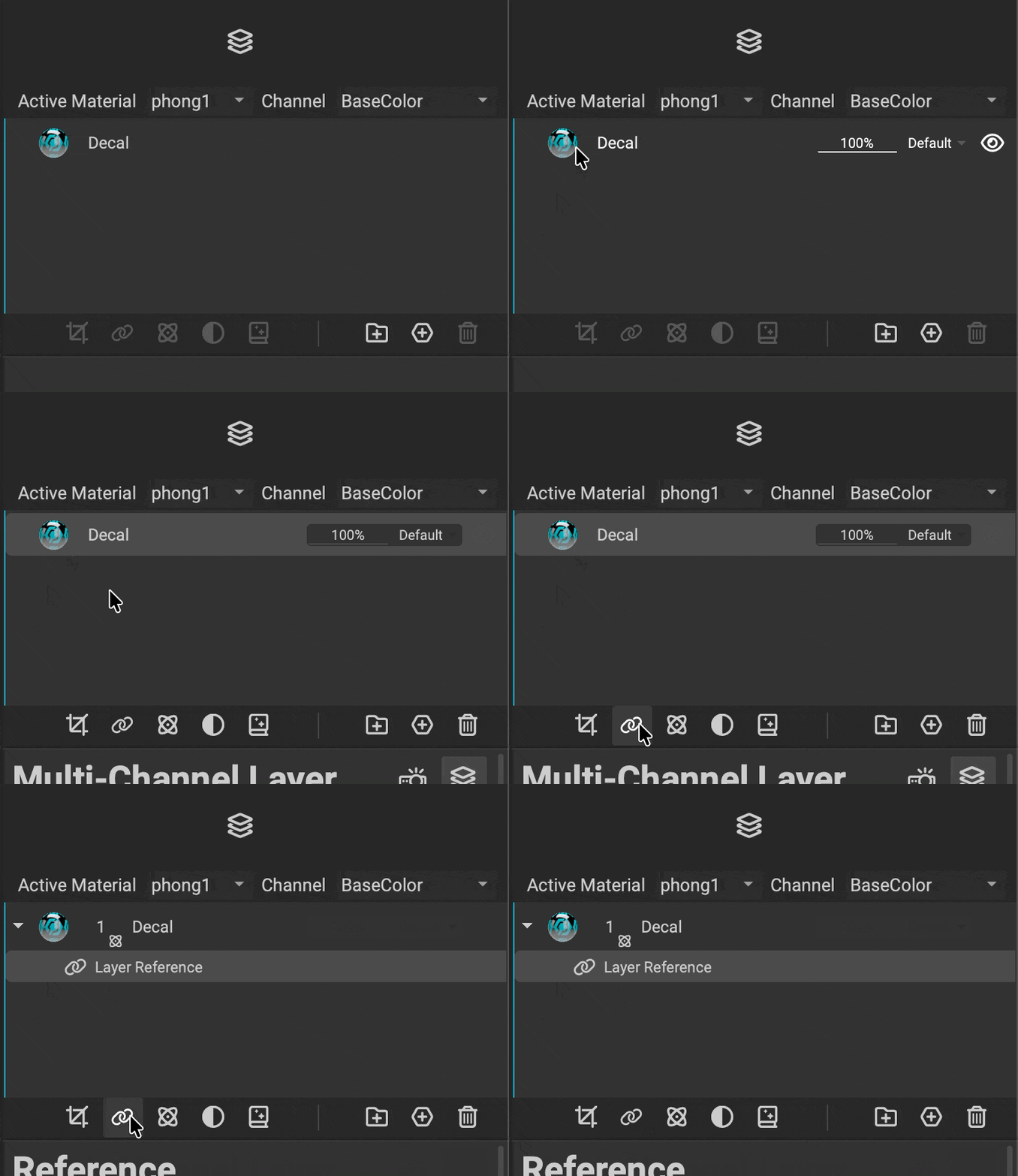 First, create a decal in your Asset Texturing project. Then, add a layer reference to the decal layer.
- Drag an image from the MAT Library or Package Management panel onto the mesh to create a decal.
- In the Layer Stack, select the decal’s Multi-Channel Layer.
- Click the
Add Referencebutton below theLayer Stackto create a layer reference for the decal.
To learn more about how to create decals in InstaMAT Studio, please read our dedicated article on Decals.
¶ Mask the Decal Using its Alpha Channel
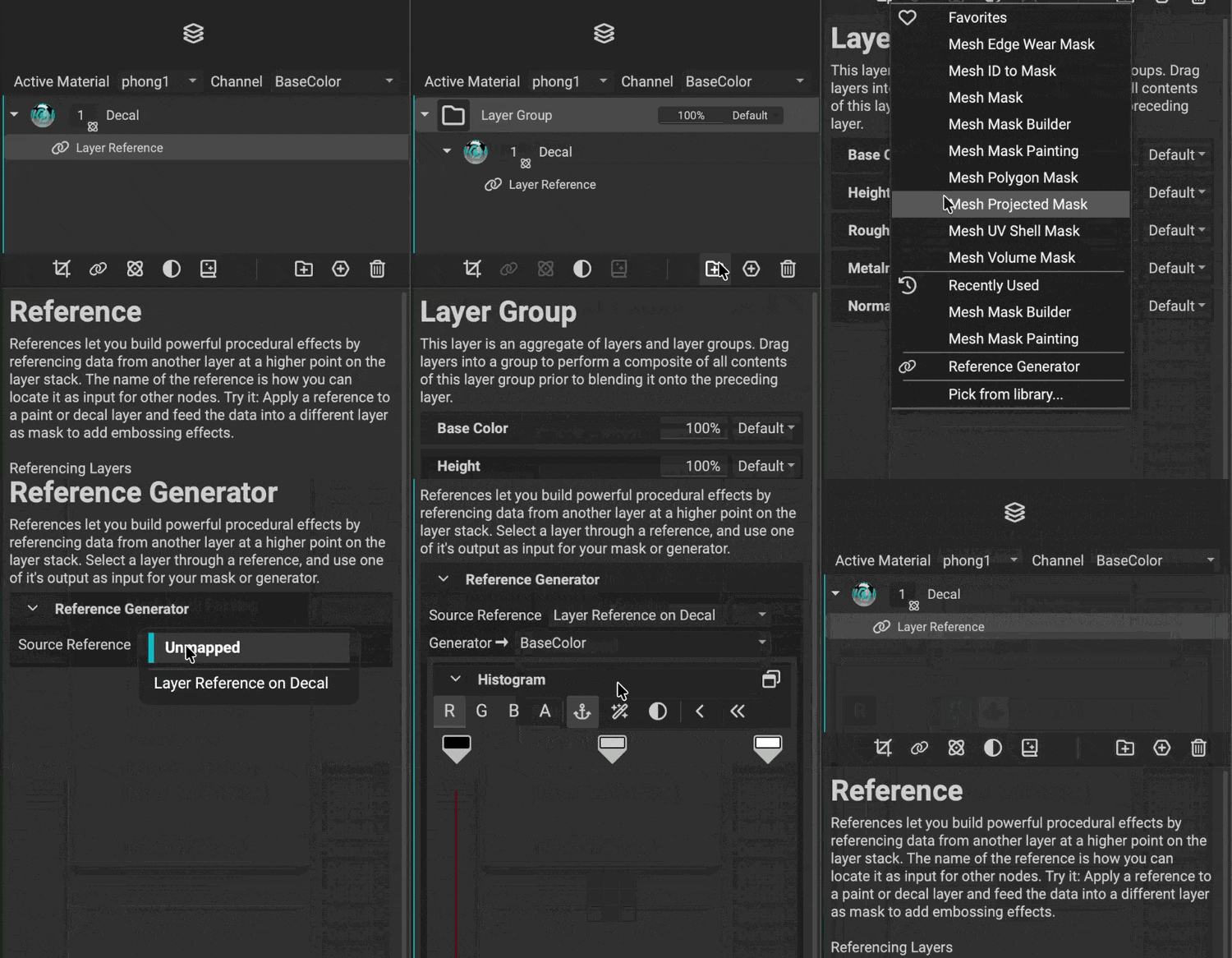 Next, create a group and use a reference generator mask that targets the decal reference's alpha channel information.
- In the
Layer Stack, select the decal’s Multi-Channel Layer again. - Click the
Add New Layer Groupbutton to place the decal into a new layer group. - Select the new group in the
Layer Stack. - Click the
Add Maskbutton and chooseReference Generator. - In the Reference Generator settings, use the
Source Referencedropdown to select the decal layer’s reference. - Use the
Generatordropdown to select theBaseColorchannel. - In the
Histogramwidget, clickAto target the reference’s alpha channel.
Everything in the layer group is now masked by the decal’s alpha channel. Additional layers added inside the group affect only the visible area of the decal.
To learn more about references, please visit our dedicated article on Layer References.