When creating ElementImage graph inputs and local variables in an Element graph, it is important to set the proper color space to ensure the desired result when processing image data.
For example: inputting information in sRGB color space into an operation that expects linear data will yield incorrect results. Additionally, some algorithms need to run in a particular color space to be accurate. Setting the color space properly will ensure accurate results.
¶ Setting the Color Space in the Graph Variable Editor
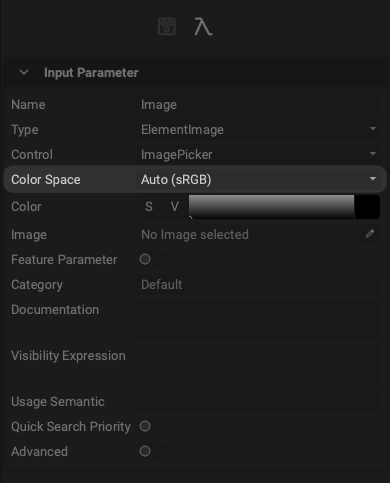
To set the color space for an ElementImage input, select the input and open the Graph Variable Editor panel. The color space for the input can be explicitly determined with the Color Space dropdown.
¶ Automatic Color Space Assignment
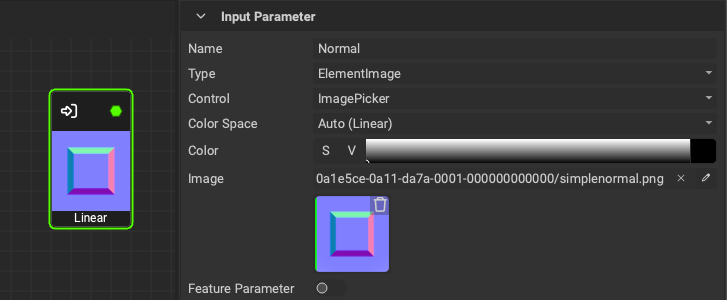
InstaMAT Studio is able to automatically set the color space of an ElementImage input based on the name of the input. This is done when the Color Space parameter is set to Auto and is the default setting when creating an ElementImage value type. If the name of the input implies a particular color space, InstaMAT will set it accordingly.
For example: if the input is named "Normal", the color space is automatically set to
Auto (Linear).
¶ When to Set the Color Space to Linear
The color space for an ElementImage value type should be set to Linear for the following use cases:
- Grayscale information
- Normal information
- Masks (Mesh ID, Vertex Color)
- HDRI Environment Images
¶ When to Set the Color Space to sRGB
The color space for an ElementImage value type should be set to sRGB when working with image information for the Base Color channel of a material or textured asset.